
Showing posts with label Xamarin. Show all posts
Showing posts with label Xamarin. Show all posts
Thursday, February 23, 2017
At-First-Glance Comparison between Xamarin and React-Native
I am nothing more than a beginner in mobile development, but I am leaving here my impressions after being assigned the task of setting up a dev environment in both Xamarin and React-Native and share what it felt like to create a hello world app and play a bit with the source.

Thursday, October 13, 2016
Xamarin Forms Real Time Designer / Previewer
I have been trying what is available out there, at the moment, with regards to a real time UI designer for Xamarin forms.
The outcome of my research is:
The outcome of my research is:
- Tried Xamarin's Previewer - am stuck with the designer showing a gray box containing "XFPageRendererView". You can find other users facing the same issue. I tried to follow what they did to overcome it, but without success. Actually none of the solutions presented is really clear. It's worth mentioning a major drawback of this option: you must have a Mac running (at least in the current state of things, this seems to be a bug, not yet fixed) , to which you will connect to as the Mac Agent in Visual Studio, otherwise the previewer does not seem to respond. Like Gorilla Player, requires you to code your UI using XAML.
- Xamarin Forms Player - there is a nuget package, it is a headache to install, because it will (may) conflict with several of your other nuget packages - my workaround here was to manually install all the depencencies/missing ones, one by one, in the Droid project. Still, after being all set and ready to go, I could not go passed the Window with the Connect button. No idea how to proceed from there, what am I supposed to do, how do I finally see the preview. No suceess, followed the docs/the site, to no avail.
- Last and only working option - Gorilla Player. Setup consists of installing a program both in the desktop and in the device. But that's all. Just follow the instructions from the site, and things move smoothly. Drawback: you are forced to code your UI using XAML.
Tuesday, September 27, 2016
Setting up a Xamarin development enviroment in Visual Studio 2015
In this post, I will keep track of all the important steps I followed in order to successfully build, deploy and run a HelloWorld Xamarin.Forms application, both in an emulator as well in a physical device - plus successfully debugging it as well.
I had lots of trouble and in doing that under Windows 7, where much of the goals mentioed above were not accomplished at all.
On the other hand, after moving to a fresh new Windows 10 installation on a formatted drive, everything changed dramatically. Installing Visual Studio with Xamarin Cross Platform component was all I did to achieve running the app both in an emulator and device, plus debugging.
So here is the check-list, as I am aware of:

2. Make sure your Hyper-V instance setting for Processor -> Compatibility "Migrate to a physical computer..." is selected.

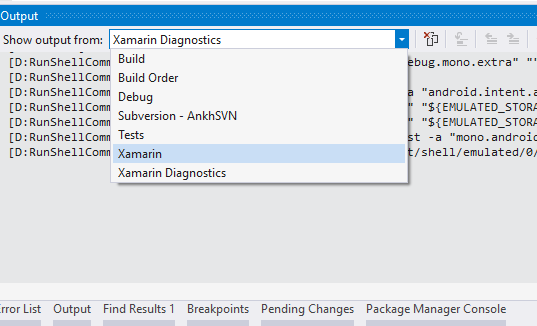
In addition, make sure you follow the Visual Studio Output window under Xamarin and Xamarin Diagnostics, to be aware of any problems.
In order to debug an Adroid device, remember that you must enable the Developer Options mode, which is achieved by clicking 7 times in Build Number under the About entry. There, you must select "USB Debugging".
To view logs from the Android side, you can issue the following
in the Android Adb Command Prompt (the one to the right of Android SDK icon in the visual studio Xamarin toolbar).
adb logcat -d > logcat.txt
I had lots of trouble and in doing that under Windows 7, where much of the goals mentioed above were not accomplished at all.
On the other hand, after moving to a fresh new Windows 10 installation on a formatted drive, everything changed dramatically. Installing Visual Studio with Xamarin Cross Platform component was all I did to achieve running the app both in an emulator and device, plus debugging.
So here is the check-list, as I am aware of:
- Operational System: Windows 10 (it seems, by googling, possible to do all this in Windows 7, but from my experience, it adds lots of difficulties, such as the absence of Hyper-V virtualization server (hindering emulation) - weighed against the smooth experience of doing it in Windows 10 - must make you consider upgrading your OS very seriously.
- Installing Visual Studio 2015 marking the Xamarin Cross-Platform components box.
Debugging:
- Make sure the debugger selected in the project's properties is Xamarin, in order to successfully debug.
2. Make sure your Hyper-V instance setting for Processor -> Compatibility "Migrate to a physical computer..." is selected.

In addition, make sure you follow the Visual Studio Output window under Xamarin and Xamarin Diagnostics, to be aware of any problems.
In order to debug an Adroid device, remember that you must enable the Developer Options mode, which is achieved by clicking 7 times in Build Number under the About entry. There, you must select "USB Debugging".
To view logs from the Android side, you can issue the following
in the Android Adb Command Prompt (the one to the right of Android SDK icon in the visual studio Xamarin toolbar).
adb logcat -d > logcat.txt
Subscribe to:
Posts (Atom)