Search This Blog

Sunday, November 27, 2016

Editing windows registry to Force WebBrowser control use the latest IE version installed in local machine

Here's the C# code I used for this task:

private void EditRegistryToFixIEWebBrowserCompatibility()
       {
           string installedIEVersion = string.Empty;
           int hostAppKeyValue = 0;
           //name of the application that hosts the WebBrowser object being invoked. If you are in debugging mode, the extension should be ".vshost.exe" instead of ".exe".
           var hostAppKeyName = Assembly.GetExecutingAssembly().GetName().Name + ".exe";

           //registry key for Feature Browser Emulation
           RegistryKey regKeyFBE = null, regKeyInstalledIEVersion = null, regKeyHostApp = null;

           try
           {
               //search for Feature Browser Emulation key in relevant windows architecture
               if (Environment.Is64BitOperatingSystem)
               {
                   regKeyFBE = Registry.LocalMachine.OpenSubKey(@"SOFTWARE\\Wow6432Node\\Microsoft\\Internet Explorer\\MAIN\\FeatureControl\\FEATURE_BROWSER_EMULATION"true);
                   regKeyInstalledIEVersion = Registry.LocalMachine.OpenSubKey(@"SOFTWARE\\Wow6432Node\\Microsoft\\Internet Explorer"true);
               }
               else
               {
                   //For 32 bit machine
                   regKeyFBE = Registry.LocalMachine.OpenSubKey(@"SOFTWARE\\Microsoft\\Internet Explorer\\Main\\FeatureControl\\FEATURE_BROWSER_EMULATION"true);
                   regKeyInstalledIEVersion = Registry.LocalMachine.OpenSubKey(@"SOFTWARE\\Microsoft\\Internet Explorer\\"true);
               }

               //get current IE installed version
               installedIEVersion = Convert.ToString(regKeyInstalledIEVersion.GetValue("svcVersion"))?.Split('.').FirstOrDefault();
               int.TryParse(installedIEVersion, out hostAppKeyValue);
               hostAppKeyValue *= 1000;
           }
           catch (Exception ex)
           {
               MessageBox.Show("Registry creation of Feature Browser Emulation key failed for Internet Explorer failed. {0}", ex.Message);
               return;
           }

           #region Search for registry key

           try
           {
               //search for a dword with a key named like our app's exe (if its value is lower than the current installed IE version, discard
               hostAppKeyValue = Math.Max(hostAppKeyValue, Convert.ToInt32(regKeyFBE.GetValue(hostAppKeyName)));
           }
           catch (Exception)
           {
               MessageBox.Show($"{hostAppKeyName} key does not exist. Creating...");
               regKeyHostApp = regKeyFBE.CreateSubKey(hostAppKeyName);
               int.TryParse(installedIEVersion, out hostAppKeyValue);
               hostAppKeyValue *= 1000;
           }

           #endregion

           // Need to set the minimum IE version currently supported by Google Maps's api - multiplied by 1000
           regKeyFBE.SetValue(hostAppKeyName, unchecked(hostAppKeyValue), RegistryValueKind.DWord);

           try
           {
               //Check for the key after adding
               hostAppKeyValue = Convert.ToInt32(regKeyFBE.GetValue(hostAppKeyName));
           }
           catch (Exception ex)
           {
               MessageBox.Show("Registry creation of Feature Browser Emulation key failed for Internet Explorer failed. {0}", ex.Message);
               return;
           }
       }

Thursday, November 24, 2016

C# WebBrowser facing errors when navigating into a page that makes use of (the new 3.25) google maps api

Problem:

I have a win forms application that makes use of a System.Forms.WebBrowser object, which in turn navigates to a given html that contains several javascript files that makes an api for drawing areas/polygons / adding text labels, among other things, on top of google maps. The problem is that google recently upgraded their api to v3.25, in which they do not support anymore IE versions lower than 10. My WebBrowser object was always emulating an IE 7 browser (not clear why, because after creating a blank winforms project and adding a single WebBrowser into it, to navigate into a page like the mentioned above - but this time hosted locally - the user agent string displayed (after adding alert(this.navigator.userAgent); into the onload event of the body html element) contained no "compatible; MSIE 7;" or alike, rather a rv.11 (referring to IE 11)).
Having the WebBrowser running an emulation of IE 7 was causing javascript errors (Google's api stopped supporting IE versions prior to 10).

Solution:

The solution that finally worked was this one.

Summary:

  1. Make sure you have IE 10 or higher installed on the machine serving the uri WebBrowser is to navigate to.
  2. Add the registry values as indicated in the link above - do not forget, when adding the DWORD, to use a key with the exact .exe file where the WebBrowser instance is invoked.
I added another post containing the C# code for fixing this issue (another post because I wanted a post that would catch a closer-to-the-exact-issue title).

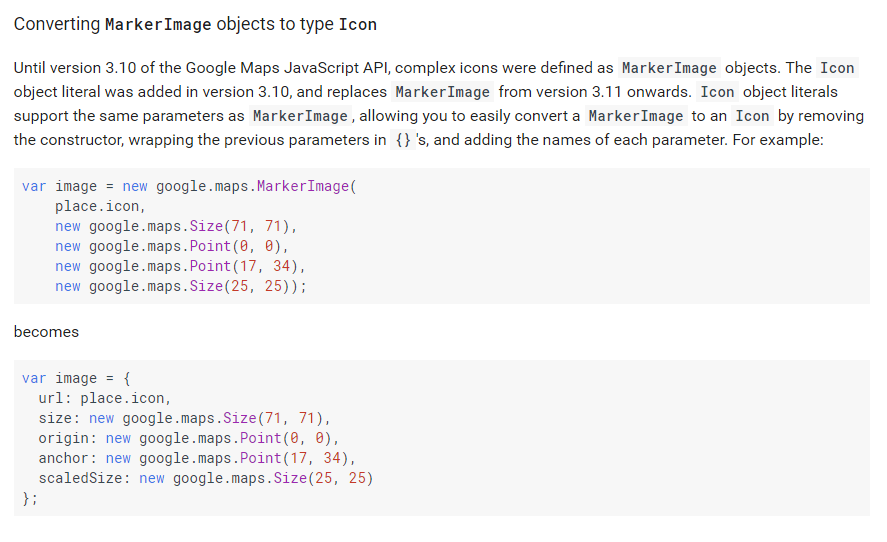
Update: The approach above was found to be incomplete, due to part of Google API being deprecated some versions from now (which was still available to 3.4). Make sure you do not make use of MarkerImage, like below.

Click here for google's reference on it, but here's the summary:


Tuesday, November 22, 2016

Find in Visual Studio Find Results (further search)

I was wondering if it was possible to further search the results of a Find Results window in Visual Studio. I googled it but did not arrive to any relevant answer.

I then played a bit with it and ended up figuring out that it is possible - it is built in, and it's quite simple: just click CTRL + F inside the Find Results window.


Thursday, October 13, 2016

Xamarin Forms Real Time Designer / Previewer

I have been trying what is available out there, at the moment, with regards to a real time UI designer for Xamarin forms.

The outcome of my research is:
  1.  Tried Xamarin's Previewer - am stuck with the designer showing a gray box containing  "XFPageRendererView". You can find other users facing the same issue. I tried to follow what they did to overcome it, but without success. Actually none of the solutions presented is really clear. It's worth mentioning a major drawback of this option: you must have a Mac running (at least in the current state of things, this seems to be a bug, not yet fixed) , to which you will connect to as the Mac Agent in Visual Studio, otherwise the previewer does not seem to respond. Like Gorilla Player, requires you to code your UI using XAML.
  2. Xamarin Forms Player - there is a nuget package, it is a headache to install, because it will (may) conflict with several of your other nuget packages - my workaround here was to manually install all the depencencies/missing ones, one by one, in the Droid project. Still, after being all set and ready to go, I could not go passed the Window with the Connect button. No idea how to proceed from there, what am I supposed to do, how do I finally see the preview. No suceess, followed the docs/the site, to no avail.
  3. Last and only working option - Gorilla Player. Setup consists of installing a program both in the desktop and in the device. But that's all. Just follow the instructions from the site, and things move smoothly. Drawback: you are forced to code your UI using XAML.

Sunday, October 9, 2016

Silverlight NumericUpDown and BusyIndicator dlls missing

If you are facing the messages

The type or namespace name 'NumericUpDown' could not be found (are you missing a using directive or an assembly reference?)

or

The type or namespace name 'BusyIndicator' could not be found (are you missing a using directive or an assembly reference?)

You are likely missing the installation of Silverlight's toolkit. Install the one that matches the silverlight version you are using.

Thursday, October 6, 2016

Find out which mySql version you are using without using the command line

Most posts will tell you to run something in the mysql command line, but in case you do not have it installed, like me (I have only an sql editor installed), function VERSION can give you that from the Sql Editor you are using:

Simply run  a SELECT VERSION()

Tuesday, September 27, 2016

Setting up a Xamarin development enviroment in Visual Studio 2015

In this post, I will keep track of all the important steps I followed in order to successfully build, deploy and run a HelloWorld Xamarin.Forms application, both in an emulator as well in a physical device - plus successfully debugging it as well.

I had lots of trouble and in doing that under Windows 7, where much of the goals mentioed above were not accomplished at all.

On the other hand, after moving to a fresh new Windows 10 installation on a formatted drive, everything changed dramatically. Installing Visual Studio with Xamarin Cross Platform component was all I did to achieve running the app both in an emulator and device, plus debugging.

So here is the check-list, as I am aware of:

  1. Operational System: Windows 10 (it seems, by googling, possible to do all this in Windows 7, but from my experience, it adds lots of difficulties, such as the absence of Hyper-V virtualization server (hindering emulation) - weighed against the smooth experience of doing it in Windows 10 - must make you consider upgrading your OS very seriously.
  2. Installing Visual Studio 2015 marking the Xamarin Cross-Platform components box.

Debugging:
  1. Make sure the debugger selected in the project's properties is Xamarin, in order to successfully debug.

      2. Make sure your Hyper-V instance setting for Processor -> Compatibility "Migrate to a physical computer..." is selected.


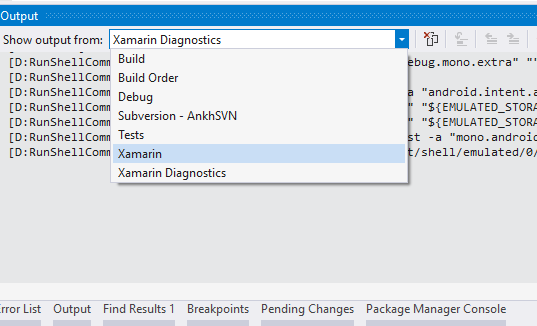
In addition, make sure you follow the Visual Studio Output window under Xamarin and Xamarin Diagnostics, to be aware of any problems.


In order to debug an Adroid device, remember that you must enable the Developer Options mode, which is achieved by clicking 7 times in Build Number under the About entry. There, you must select "USB Debugging".

To view logs from the Android side, you can issue the following
in the Android Adb Command Prompt (the one to the right of Android SDK icon in the visual studio Xamarin toolbar).

adb logcat -d > logcat.txt